How to generate a Dentrix Procedure Summary as an Excel spreadsheet or CSV
Last updated: October 15, 2026 by Jason Shah
The Dentrix Procedure Summary shows every completed procedure code over a date range, grouped by procedure category (Diagnostic, Preventive, Restorative, and so on). For each procedure code it lists the quantity, total fees, average fee, and percent of total production, broken down by provider. At the end, it shows grand totals for each provider.
This makes it one of the best reports for understanding your procedure mix: which procedures drive your production, how fees compare between providers, and how much each hygienist and doctor contributes. The problem is that Dentrix produces it as a long PDF, which is hard to sort, filter, or pivot.
In this guide, we will walk through how to generate the Procedure Summary PDF in Dentrix, and then convert it to Excel or CSV using Dentrix Report Converter.
Step 1: Open the Procedure Summary in Dentrix Reports
Launch Dentrix and log in with a user with sufficient permissions to generate reports.
Open the Dentrix Reports module. In the Reports list on the left, select Procedure Summary.
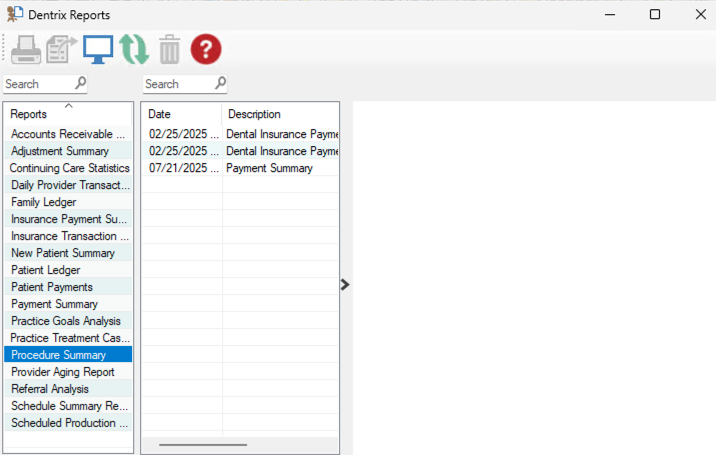
Step 2: Configure the report settings
Open the report options to see the Procedure Summary dialog.
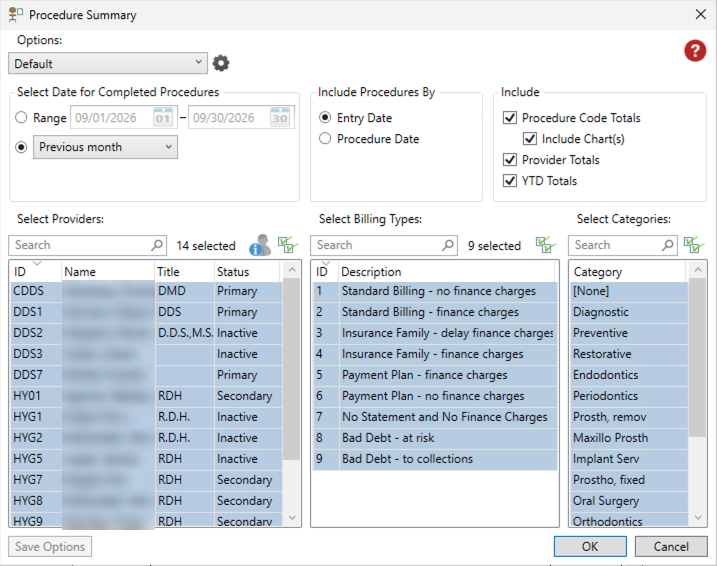
Use the settings that match your workflow, but these are common defaults for most practices:
- Select Date for Completed Procedures: choose a Range or a preset such as Previous month. Note that Dentrix Report Converter requires the number of pages in the output to be 30 or less. A full year of data for a busy practice is typically around 15 pages.
- Include Procedures By: choose Entry Date if you want what was posted during the period, or Procedure Date if your office back-dates procedures.
- Include: check Procedure Code Totals and Provider Totals. The chart is optional; Dentrix Report Converter ignores it.
- Select Providers, Billing Types, and Categories: leave everything selected to see your whole practice, or narrow it down to a single provider or category.
Once configured, click OK to generate the report.
Step 3: Save the report as a PDF
Your Procedure Summary should look similar to this:
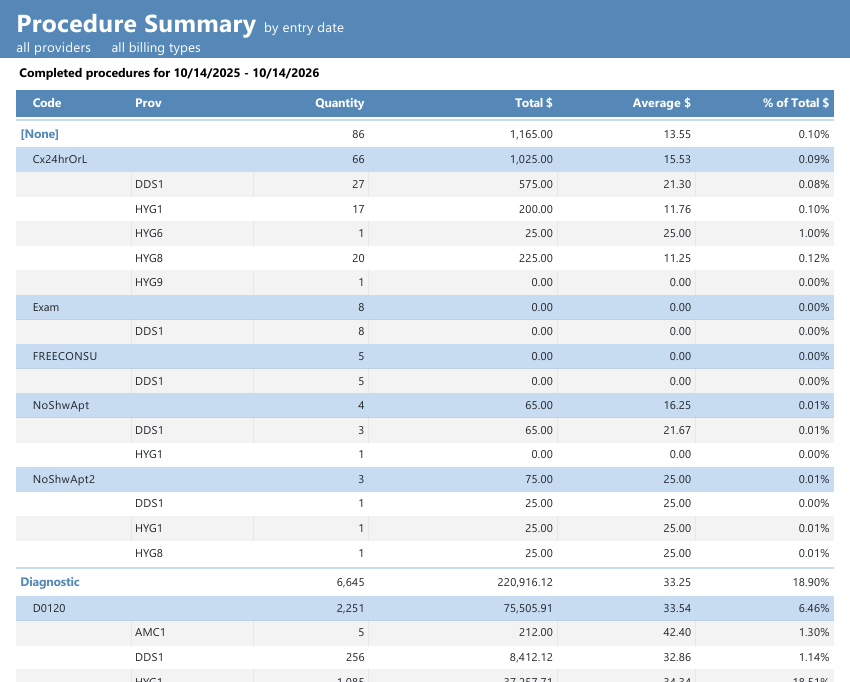
Print the report, and look for a printer that says something like "Print to PDF". That printer will allow you to "print" the report to a PDF file on your computer.
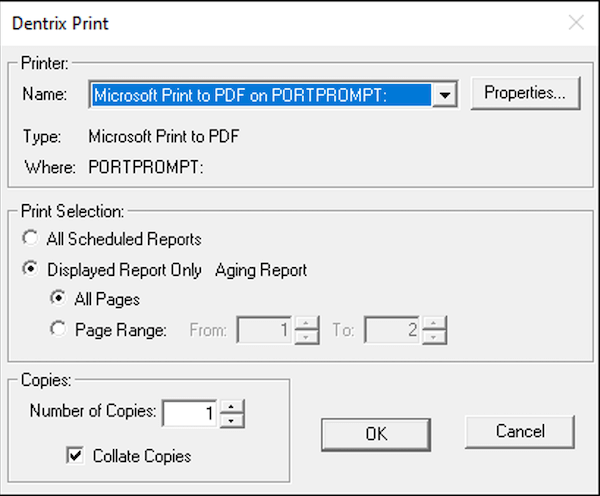
Click on OK and save the PDF to your computer.
Step 4: Convert the Procedure Summary PDF to Excel or CSV
Log into your Dentrix Report Converter Dashboard.
Drag the PDF into the upload area.
Tap Upload and Convert.
Within seconds, you will receive a link to download your Procedure Summary in Excel. The spreadsheet has one row per procedure code and provider, with the Category and Code filled in on every row, so you can sort, filter, and build pivot tables right away. The report's date range appears at the top, and the provider grand totals appear at the bottom.
Once converted, you can use the spreadsheet to compare production by procedure code, see how fees differ between providers, and share clean numbers with your accountant, consultant, or a potential buyer of your practice.